The overview and action summary below are synced from the Sqyre application repository.
For how to use the window (toolbar, add/edit rules, copy/paste, execution), see
Docs. For screenshots and the browser editor, see
Demo.
Action details
Mouse & keyboard
- Mouse Move — Cursor to coordinates (optionally smooth); points and variables supported.
- Click — Mouse button click.
- Key — Hold or release a modifier/key.
- Type — Type text with optional per-key delay.
Detection (branch actions)
These can contain child actions that run when the condition matches (see
Docs for execution details).
- Image Search — Find template images in a search area; optional wait-until-found; outputs and per-match child runs.
- OCR — Read text; run children when the read text contains a target string.
- Find pixel — Scan a region for a color; run children when a pixel matches.
Variables
- Set — Assign a variable.
- Calculate — Evaluate an expression into a variable.
- For each row — Iterate rows from a data table; child actions run once per row with column values bound to variables.
- Save to — Write variable content to a file or the system clipboard.
Loop flow
- Loop — Repeat child actions a fixed number of times (the macro root is also a loop).
- Break — Exit the innermost loop container.
- Continue — Skip to the next iteration of the innermost loop container.
Miscellaneous
- Wait — Pause (milliseconds).
- Pause — Halt until you press a continue hotkey.
- Focus window — Bring a window to the front by title.
- Run macro — Run another saved macro’s root as a nested step.
- If — Run child actions when configured conditions match (all or any).
Screenshots
Synced from the
application repo.
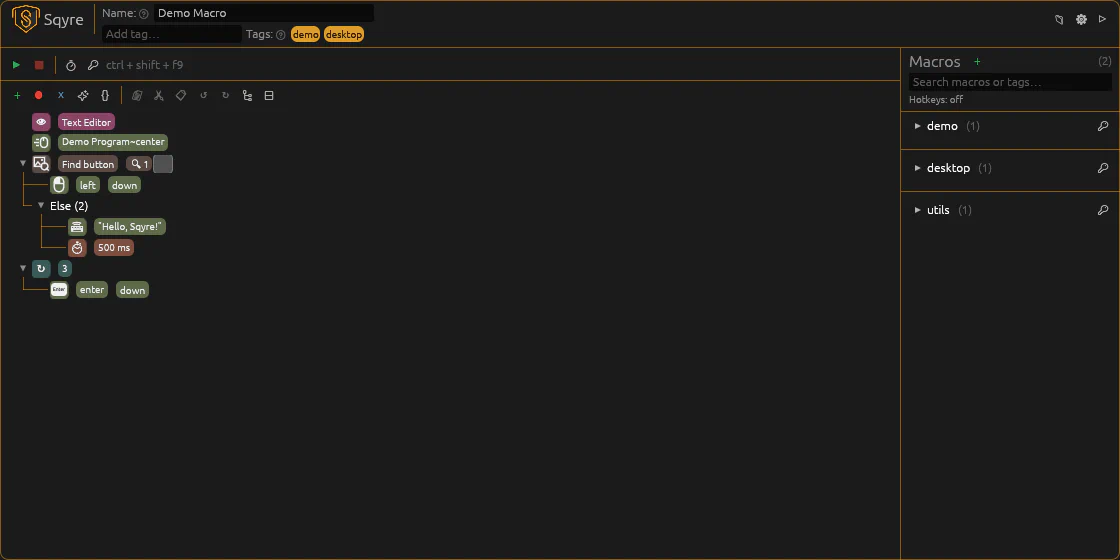
Main window
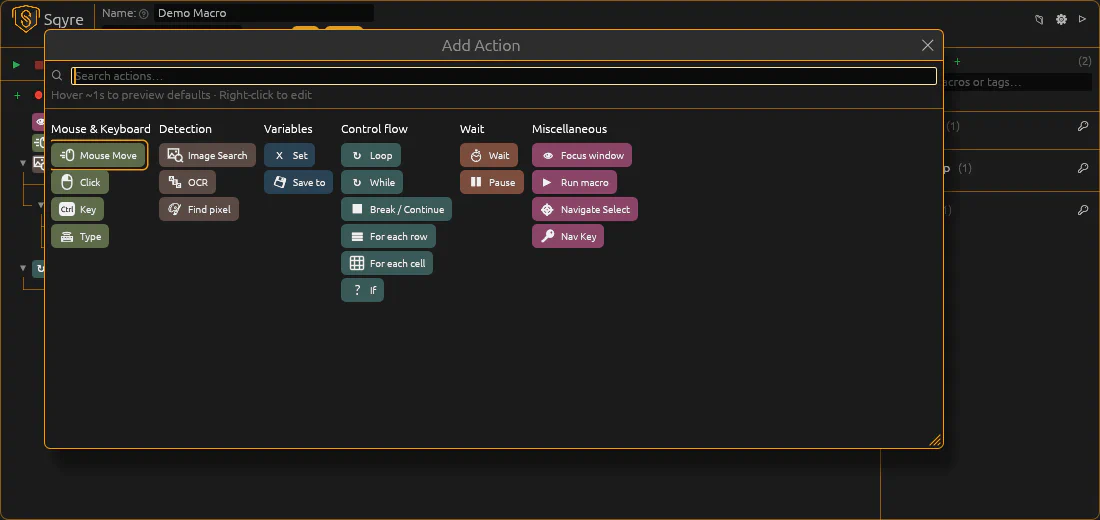
Add action picker
Five columns — Mouse & Keyboard, Detection, Variables, Loop flow, and Miscellaneous:
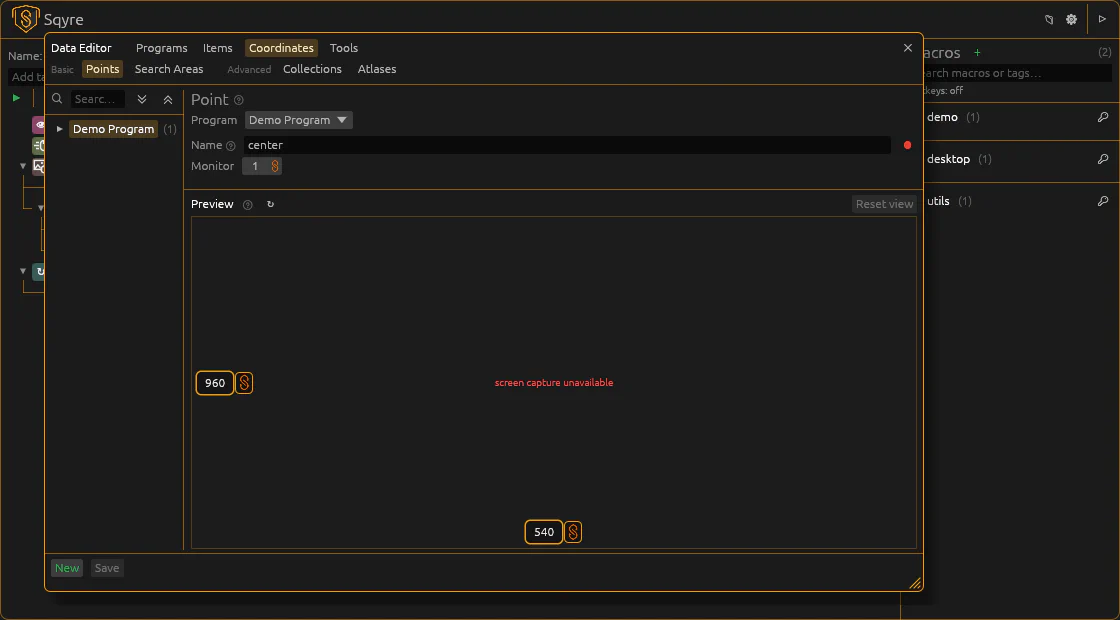
Data editor